Dataset Publication#
For this tutorial, we’ll be adapting the previous Multi-Session Tutorial to publish our data to the DANDI Archive.
Note
This tutorial focuses on uploading to the Staging server.
When working with real data, you’ll want to publish to the Main Archive. In this case, follow the same steps outlined here—except replace the Staging server with the Main Archive.
Note
Gaining access to DANDI requires approval from the archive administrators. Separate approval is required for both the main archive and the staging server.
This tutorial requires an account on the DANDI staging server.
We’re going to use the Staging server for this tutorial so we don’t crowd the main DANDI Archive with synthetic datasets! However, you’ll want to publish your real data on the main server—which will require a separate approval process.
Once you receive notice that your account was approved, you can move on to the next steps.
Workflow Setup#
Resume the conversion via the Convert page
Navigate to the Workflow page.
Specify that you’d like to publish your data to the DANDI Archive.
Navigate back to the Conversion Review page
You’ll now notice that the Exit Pipeline button has been replaced with Next, allowing you to move forward with publication on the DANDI Archive.
DANDI Upload#
You’ll need to specify your DANDI API keys if you haven’t uploaded from the GUIDE before. These keys are unique between the Main and Staging servers.
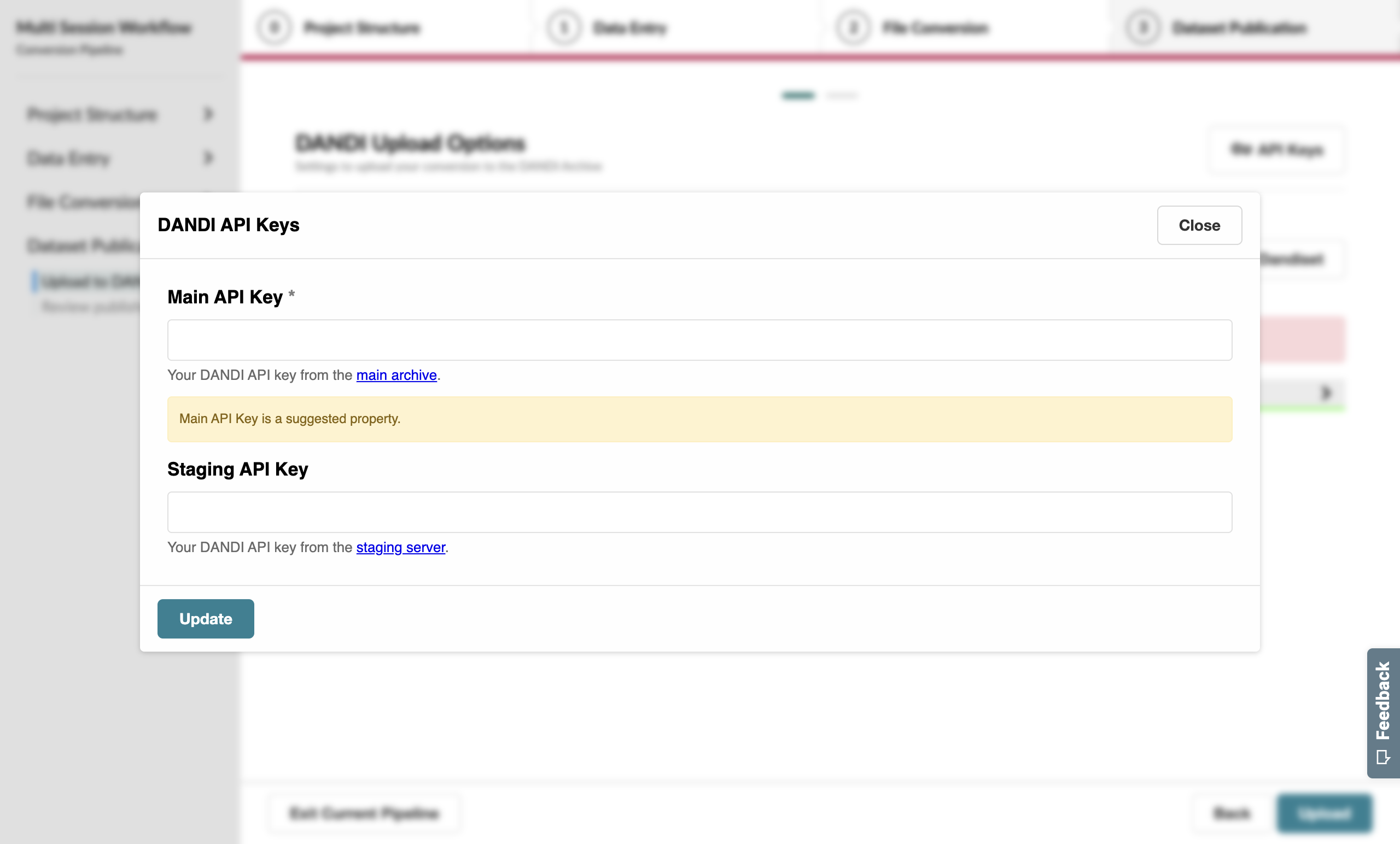
To get your API key, visit the staging website and click on the profile icon in the top-right corner. This will show a dropdown with a copy button, which will assign your API key to the clipboard.

Submit this to the Staging API Key input on the GUIDE.
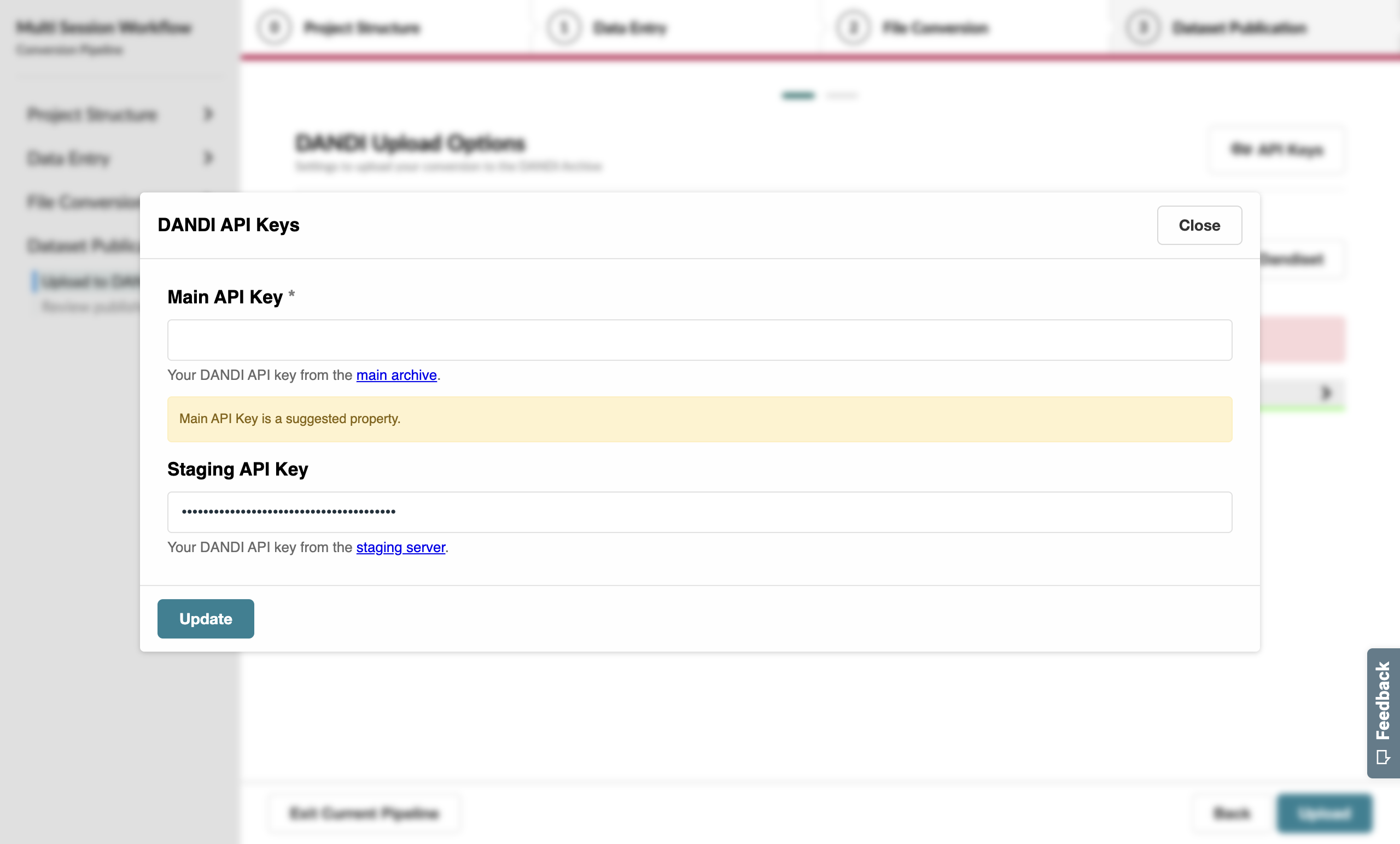
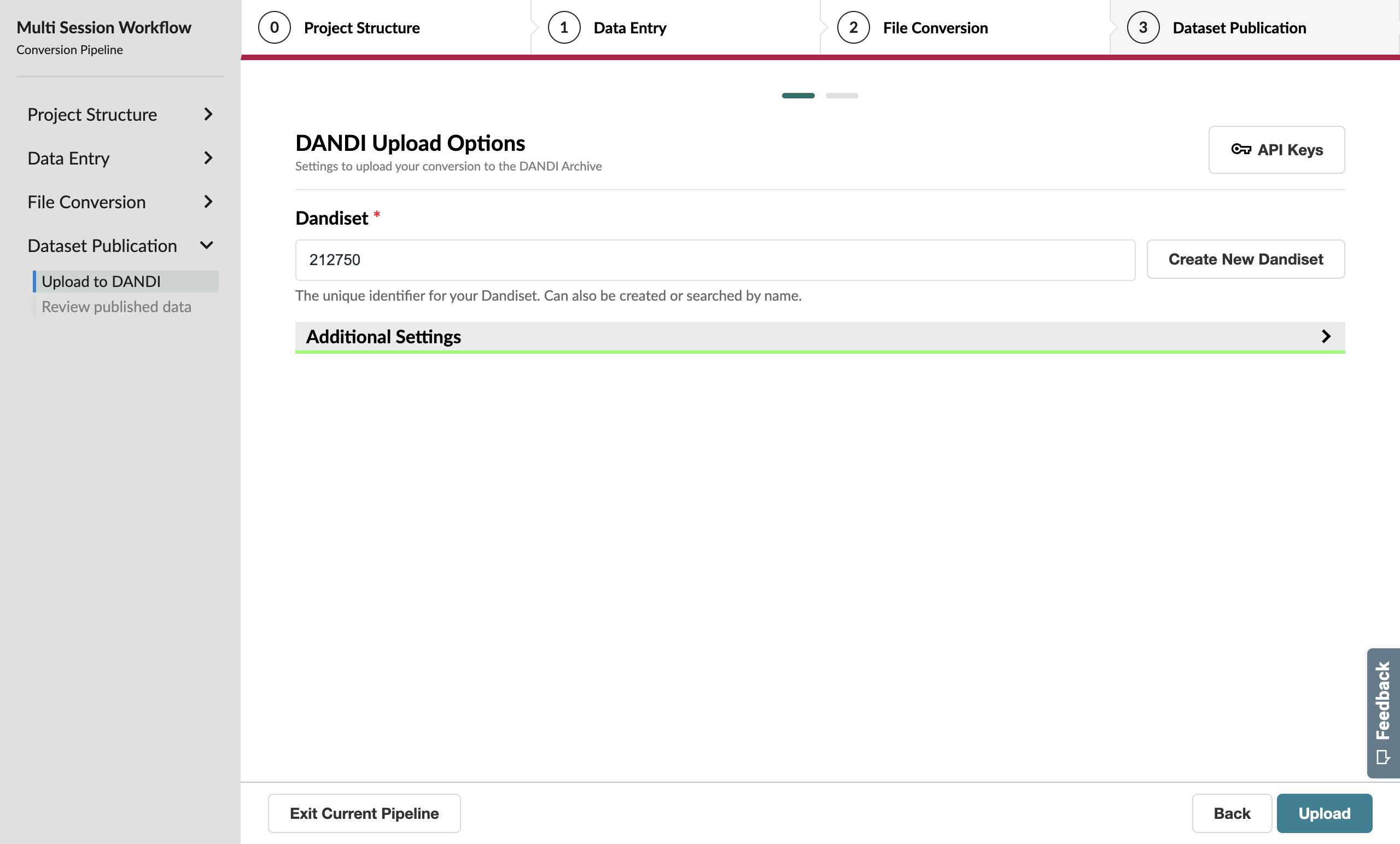
Once you have specified your Staging API Key, the Dandiset input will allow you to select any existing Dandiset associated with your account by ID (e.g., “207698”) or name (e.g., “NWB GUIDE Test”).
Continue to the next page to trigger your upload to the DANDI Archive.
Creating a Dandiset from the GUIDE#
If you do not already own a Dandiset on staging, you will need to create one. Press the Create New Dandiset button to open a pop-up that guides you through the required fields for Dandiset creation.
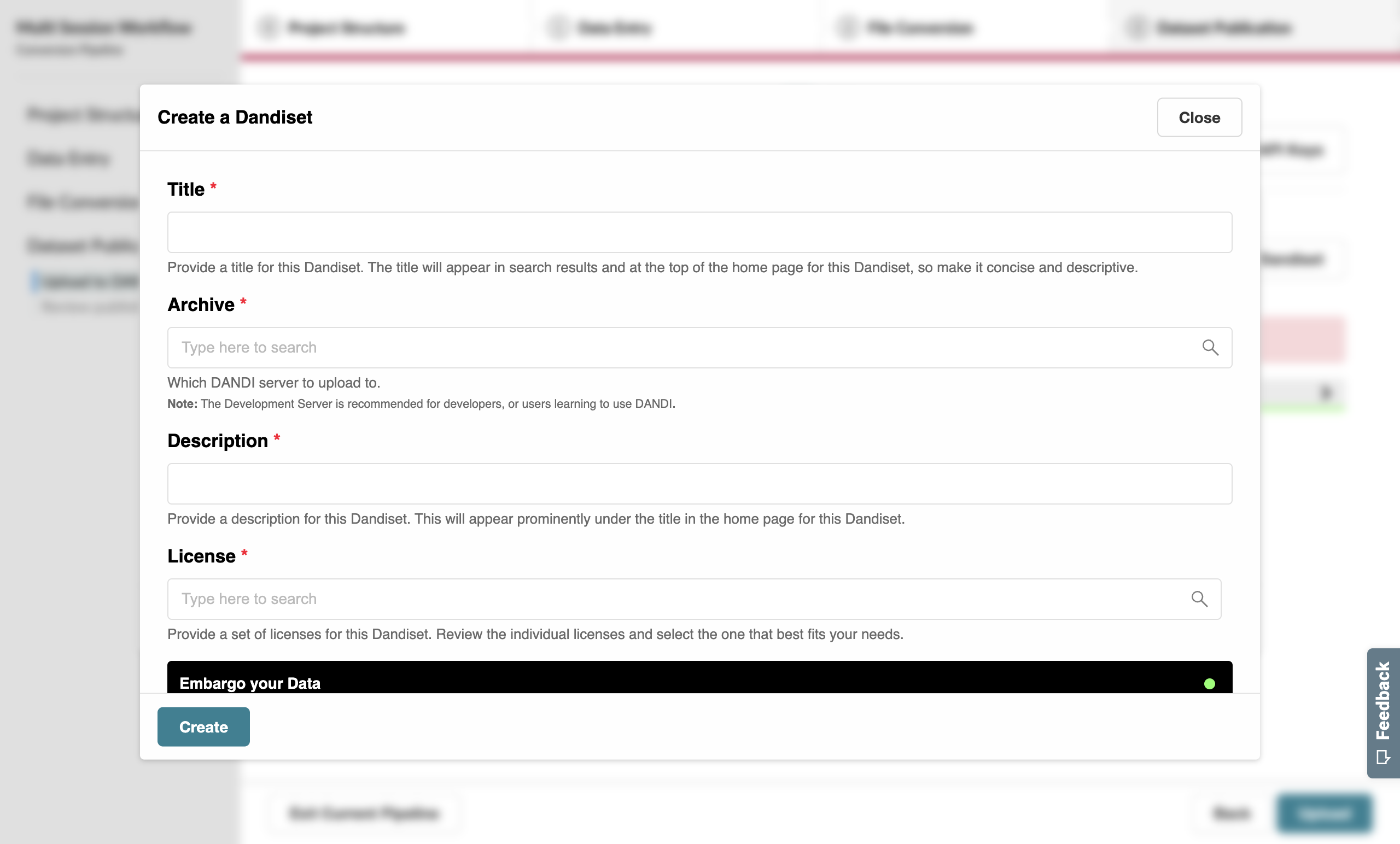
Once this pop-up form is submitted, the Dandiset input will now contain your new Dandiset.
Final Review#
Once your upload to the DANDI Archive is complete, you will be able to review a quick overview of the associated Dandiset and a list of the uploaded files from this pipeline.
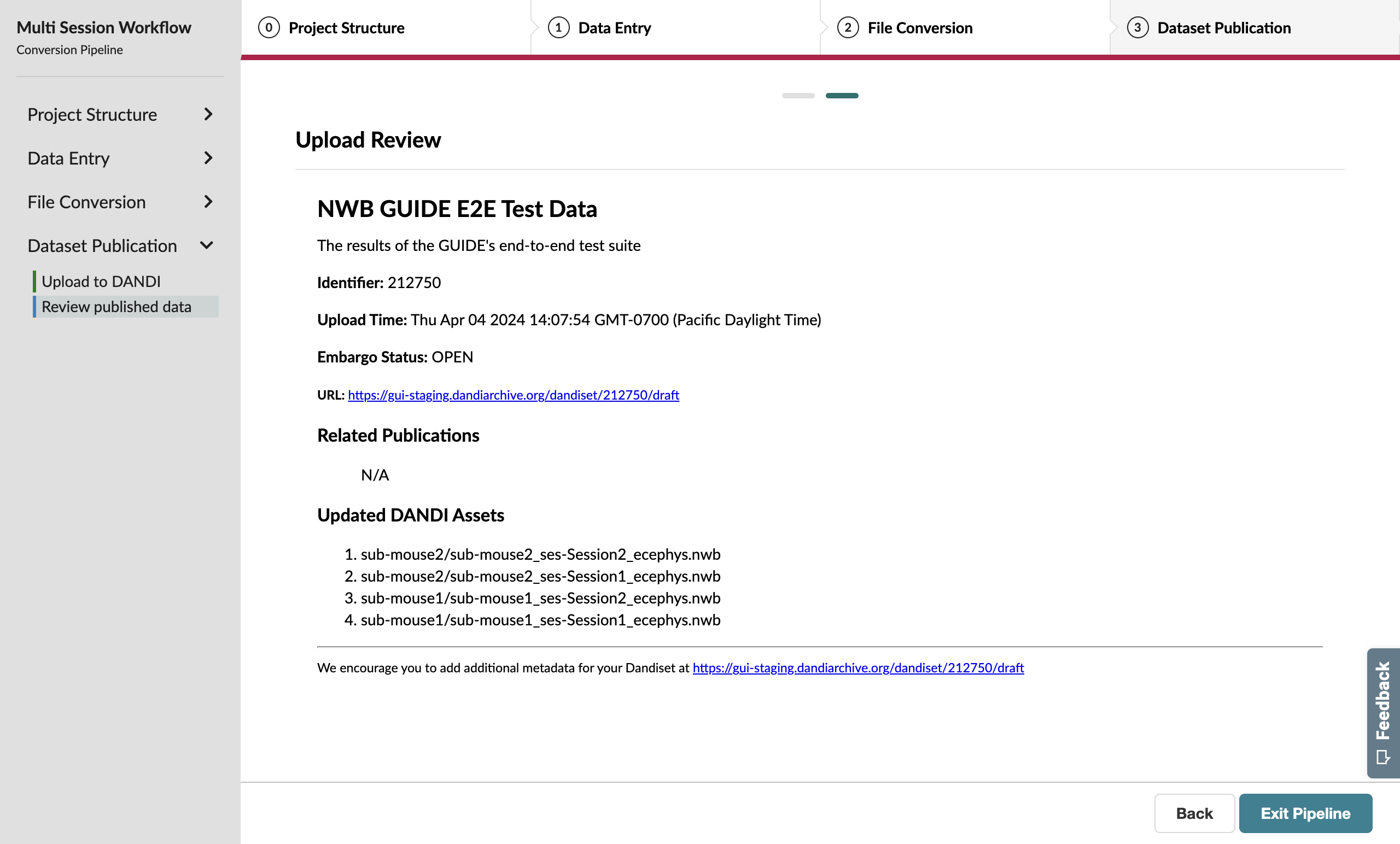
Congratulations on your first upload to the DANDI Archive from the GUIDE!